

A Comprehensive Guide to Connecting to VNC Console
In the ecosystem of remote server management, maintaining constant access to the operating system is a fundamental necessity. While system administrators typically rely on protocols like SSH for Linux or RDP for Windows for daily tasks, these tools can become inaccessible due to firewall misconfigurations, network service failures, or OS boot errors. In such critical moments, the VNC (Virtual Network Computing) console serves as the ultimate out-of-band management tool.
This article provides a technical deep dive into VNC connectivity, exploring its practical applications, inherent limitations, and its role as a vital fail-safe for server stability.

What is a VNC Console and When Do We Need It?
VNC is a graphical desktop-sharing system based on the Remote Framebuffer (RFB) protocol. Unlike text-based protocols that transmit commands, VNC transmits pixel data from the server to the client and relays keyboard and mouse events back to the server.
The primary distinction between a VNC console and tools like SSH or RDP lies in the level of access. While SSH and RDP depend on software services running within the OS, the VNC console connects directly to the hypervisor (in virtual environments) or the management hardware (in bare metal). This allows for visual access even before the operating system has fully loaded, simulating a physical monitor and keyboard connection.
System administrators typically turn to the VNC console in four key scenarios:
-
Operating System Boot Failures: When the server is stuck at the GRUB loader or experiencing a kernel panic.
-
Network Configuration Errors: If an incorrect IP assignment or firewall rule cuts off standard remote access.
-
Critical System Errors: Diagnosing Windows Blue Screen of Death (BSOD) or Linux boot loops.
-
Password Recovery: Gaining access to single-user mode or recovery consoles to reset administrative credentials.
Server Types with VNC Console Access
Console access implementation varies significantly across different hosting environments. In Virtual Private Servers (VPS), this functionality is usually provided through a virtualization management panel such as SolusVM or Virtualizor. Here, the hypervisor emulates a VGA output that is captured and streamed via VNC.
Dedicated servers, however, utilize hardware-level management modules such as IPMI (Intelligent Platform Management Interface), iDRAC (Dell), or iLO (HP). These modules feature an independent processor that remains active even when the main server is powered off, allowing for remote power management and console redirection. This level of access represents the most direct form of hardware oversight available.
For administrators prioritizing uptime, utilizing a Virtual Private Server with VNC console access is an essential safety net, ensuring that minor configuration errors do not escalate into prolonged downtime.
Prerequisites for VNC Console Connection
One of the main advantages of VNC is that it does not require complex server-side software configuration, as the service is managed at the infrastructure level. However, a few prerequisites must be met:
-
Management Panel Access: Valid credentials for the hosting provider’s control panel.
-
Server Power State: The server must be powered on or in the process of booting.
-
Modern Web Browser: Most modern panels utilize NoVNC, an HTML5-based client that requires no additional software.
-
Authentication Details: If using a standalone client, you will need the server’s IP, the specific VNC port (usually starting at 5900), and the console password.
Crucially, VNC traffic is managed outside the operating system’s internal firewalls (like iptables or Windows Firewall), making it accessible even when the OS-level security is misconfigured.
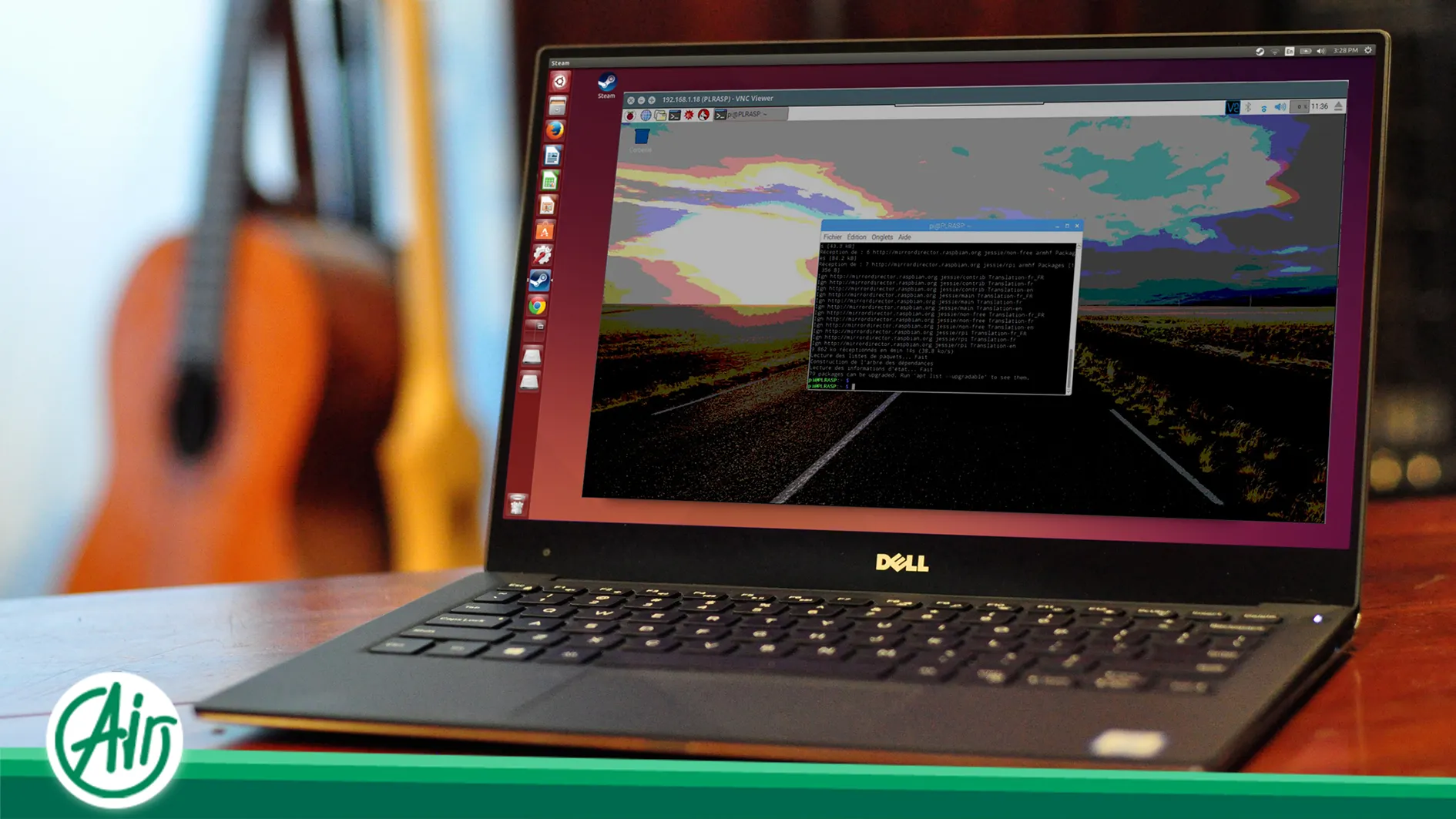
Step-by-Step Guide to Connecting via VNC
There are two primary methods for establishing a VNC connection, depending on the infrastructure provided by your data center.
Method 1: Web-Based Connection (NoVNC)
This is the most straightforward method and is widely used for cloud and virtual servers.
-
Log in to your server management portal.
-
Navigate to the specific instance and locate the “VNC” or “Console” option.
-
A pop-up window or new tab will open, displaying the server’s display output.
-
Confirm any temporary tokens or session passwords if prompted.
The primary benefit of this method is its ability to bypass local network firewalls and the fact that it requires no local software installation.
Method 2: Standalone VNC Client
For a more stable experience and advanced features, dedicated software such as RealVNC, TightVNC, or UltraVNC is recommended.
-
Install a VNC Viewer on your local machine.
-
Input the IP address and port provided by your management panel (e.g., 1.2.3.4:5901).
-
Establish the connection and enter the designated console password.
This method often provides better frame rates, custom compression settings, and more reliable transmission of specialized key combinations like Ctrl+Alt+Del.
Critical Limitations of the VNC Console
Despite its utility, VNC is an emergency tool, not a daily driver. Understanding its technical constraints is vital for efficient server management:
-
Lack of Clipboard Synchronization: In most standard VNC implementations, you cannot copy and paste text between your local machine and the server.
-
Network Latency Impact: Since VNC transmits pixel updates, it is highly sensitive to latency, which can result in sluggish mouse movements.
-
Resource Intensive: Emulating graphical output at the hypervisor level consumes more CPU cycles than a simple SSH session.
-
Poor Text Handling: Typing complex commands can be error-prone during periods of high latency.
VNC should be viewed as a “spare tire”—perfect for getting you to your destination during a breakdown, but not designed for high-performance use.
Tasks to Avoid When Using VNC
To maintain efficiency, certain tasks should be reserved for SSH or RDP. For instance, installing heavy software packages through a VNC graphical interface can be agonizingly slow due to the refresh rates.
Similarly, large-scale file management or complex data migrations should be avoided. VNC is optimized for troubleshooting and initial setup; for anything requiring extensive typing or high-speed data throughput, establish a standard network-based connection as soon as possible.
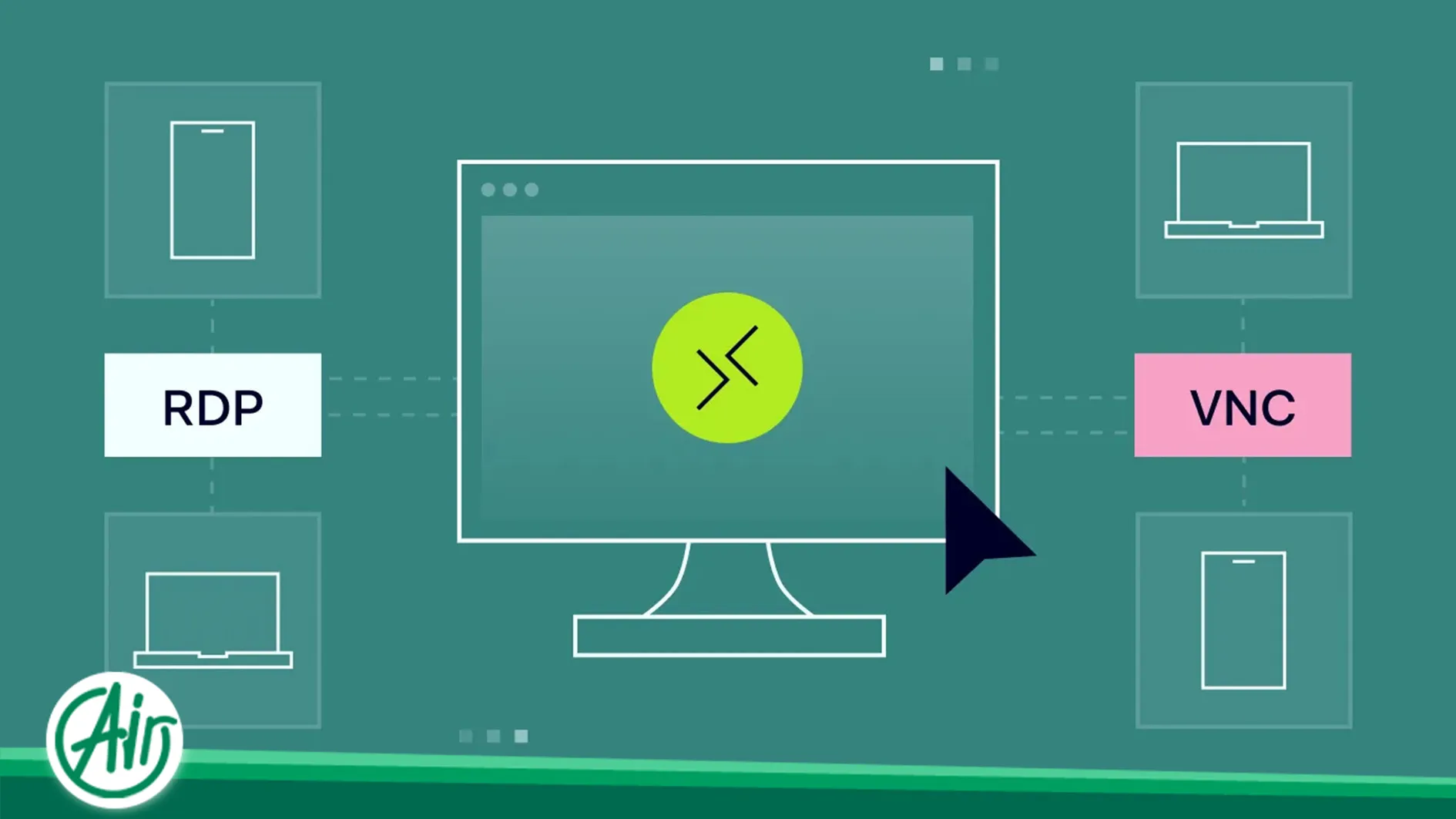
Comparing VNC with SSH and Remote Desktop
A clear technical distinction is necessary for effective administration:
-
VNC (Emergency Access): Operates at the lowest level, independent of the OS state. Best for boot issues.
-
SSH (Professional Management): The gold standard for Linux. Fast, secure, and text-based.
-
RDP (Full Graphical Environment): Proprietary to Windows. Efficiently transmits graphical instructions rather than pixels, offering a seamless user experience.
Who Requires a Server with Dedicated Console Access?
Console access is a non-negotiable requirement for several professional roles. Administrators of high-traffic sites, where every second of downtime correlates to financial loss, cannot afford to wait for manual data center intervention.
Furthermore, kernel developers or those installing custom Linux distributions require VNC to interact with the early stages of the installation process. System engineers who frequently modify network routing tables or firewall policies also rely on VNC as their only gateway back into the system if a change goes wrong.
Ultimately, for enterprise-grade projects, ensuring your infrastructure includes a Dedicated Server with console access is the best guarantee for absolute control over your digital assets.


 FR
FR  EN
EN  AR
AR  FA
FA  DE
DE