

The Difference Between Command-Line Interface (CLI) and Graphical User Interface (GUI)
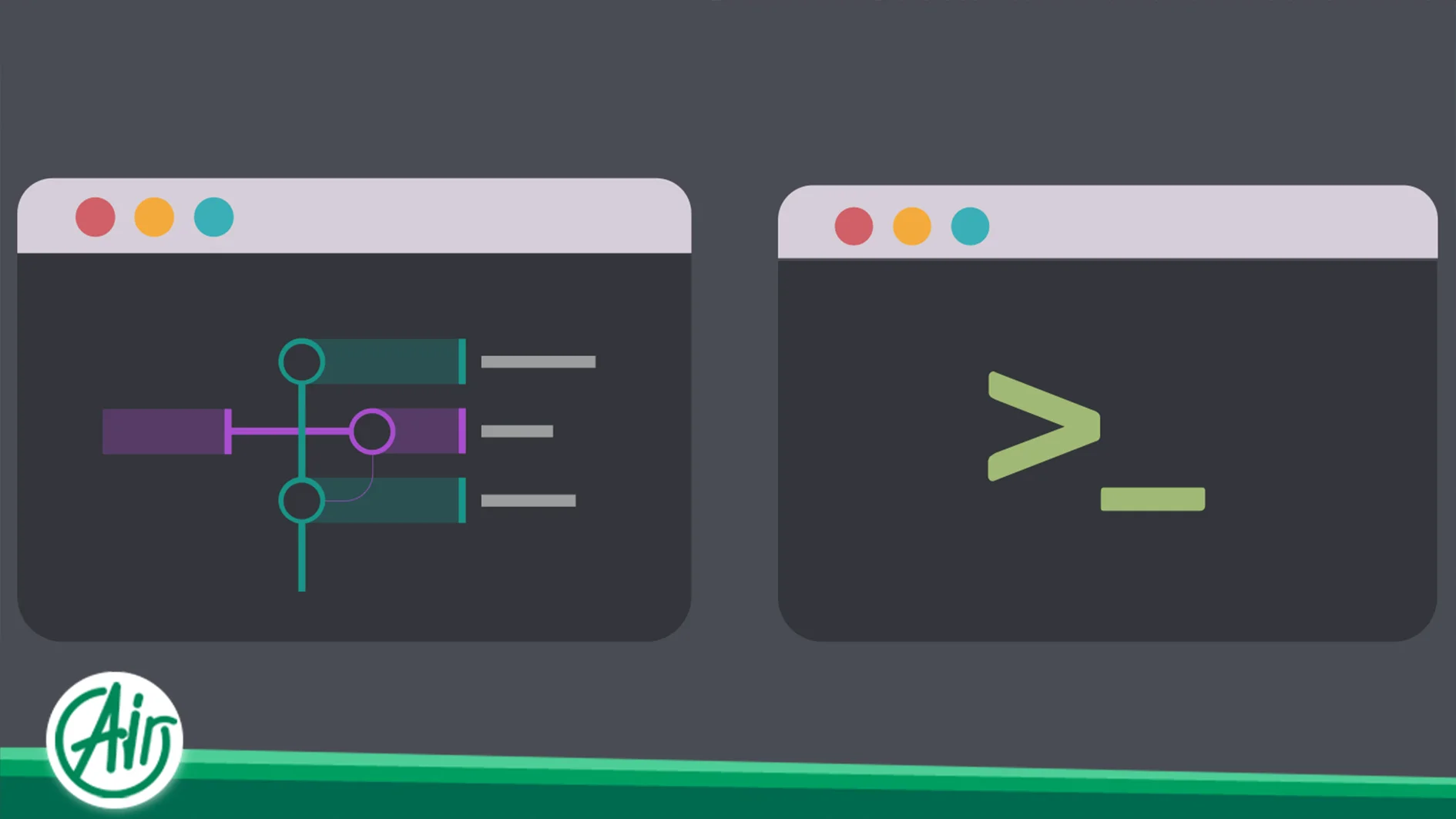
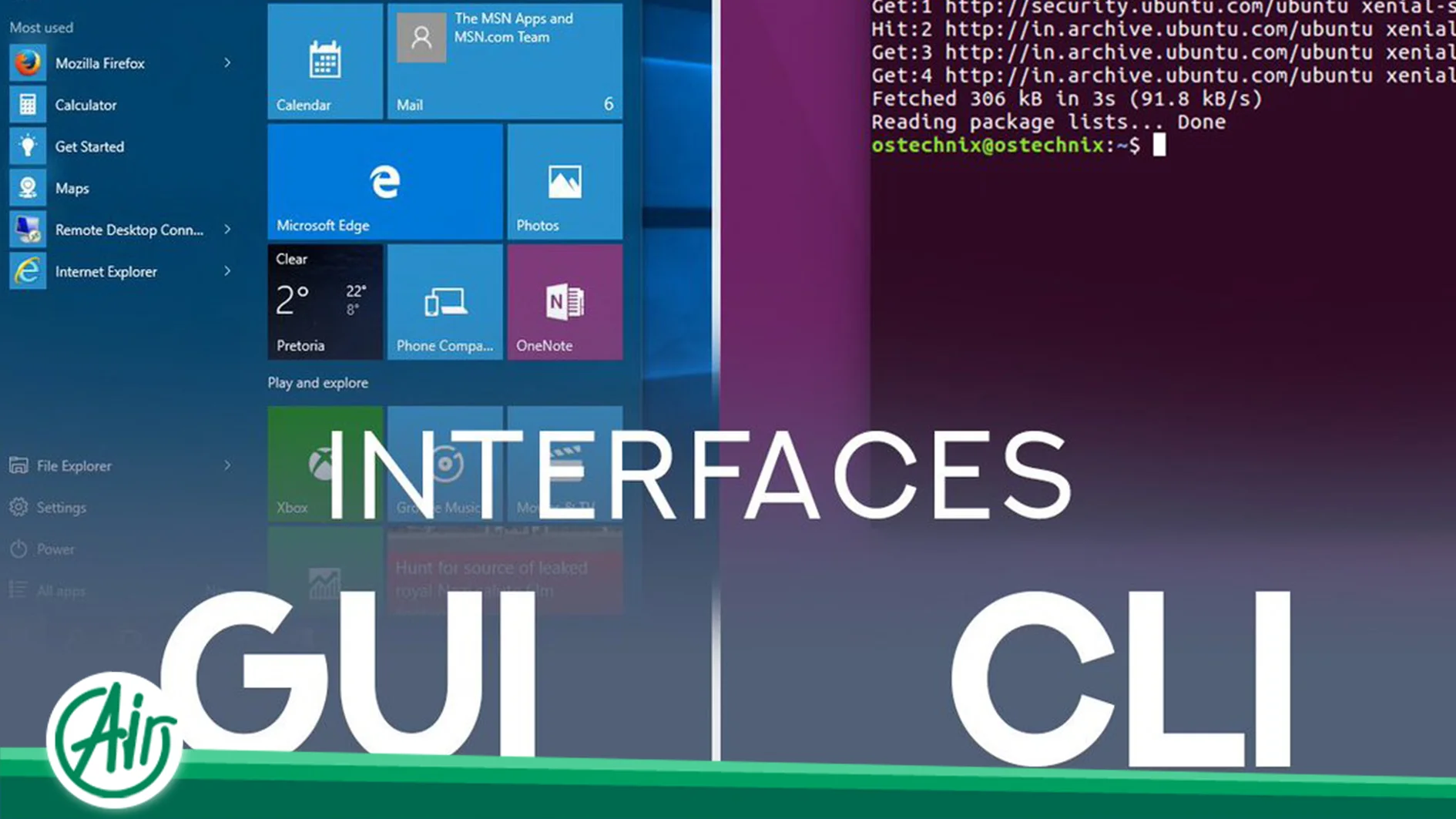
Interacting with a computer system forms the core of the user experience. Throughout the history of computing, two primary approaches have evolved for establishing this connection: the Graphical User Interface (GUI) and the Command-Line Interface (CLI). While the general public mainly interacts with GUIs on personal computers and mobile devices, IT professionals, developers, and system administrators routinely rely on the CLI. Understanding the fundamental differences, advantages, disadvantages, and applications of each is crucial for anyone looking to operate more professionally in the world of technology. These two interfaces follow distinctly separate paths, not only in appearance but also in their working philosophy, efficiency, and technical requirements.
Definition and Brief History
To deeply understand the differences, we must first look at the nature and origins of each interface.
Command-Line Interface (CLI)
Le CLI is a text-based mechanism for interacting with programs and operating systems, where the user inputs commands as text, and the system produces text output in response.
- Philosophy: CLI is built upon efficiency, precision, and automation. Every command is written as a concise and exact code.
- Roots: CLI originates from the early days of mainframe computers and operating systems like MS-DOS, Unix, and later Linux. Terminals and consoles were the only means of communicating with the system.
- Components: CLI includes a shell (like Bash, Zsh, PowerShell) which acts as the command interpreter, a prompt that indicates the system is ready to receive a command, and the commands themselves that perform specific tasks.
Graphical User Interface (GUI)
Le GUI is a system of icons, windows, menus, buttons, and other visual elements that allows the user to control the system through direct interaction with these elements.
- Philosophy: GUI is designed for visual clarity, ease of use, and intuitiveness. The main idea is that the user “sees and points” (WIMP: Windows, Icons, Menus, Pointer) to perform an operation, rather than “writing” it.
- Roots: The GUI was initially developed at Xerox PARC and then gained global popularity through Apple (with the introduction of the Macintosh in 1984) and Microsoft (with Windows).
- Components: GUI includes controls like checkboxes and radio buttons, windows, icons, and a mouse pointer (Cursor).
Functional Comparison and Productivity
The primary difference between CLI and GUI lies in how a specific task is accomplished. This difference directly impacts speed, accuracy, flexibility, and the possibility of automation.
Speed and Efficiency
| Feature | CLI | GUI |
| Execution Speed | Very fast. Once the command is memorized, repetitive tasks are executed by typing a few words. | Relatively slower. Requires mouse navigation, clicking, and opening windows. |
| Resource Consumption | Very low. Requires only text and no heavy graphical processing. | High. Requires more memory (RAM) and processing power (CPU/GPU) to render visual elements. |
| Input Requirement | Keyboard only. | Keyboard and mouse (or touchpad). |
For tasks requiring high repetition, such as managing a large number of files or executing multiple commands sequentially, the CLI has an absolute advantage. For instance, to compress ten separate files in a folder, a GUI requires repeating the compression steps ten times, selecting the file each time. In contrast, the CLI allows writing a single loop command that performs the action for all files in seconds.
Precision and Control
Le CLI gives the user precise and granular control over the system. Every parameter in a command is adjustable. This is particularly important in server environments, where the exact execution of operations without any guesswork from the system is vital.
Le GUI typically offers a set of predefined options and often hides deep system settings to prevent user confusion. This simplicity comes at the cost of losing complete control over all parameters.
Automation and Scripting
The most significant advantage of the CLI is its Scripting capability. Through scripts (like Bash on Linux or PowerShell on Windows), a set of commands can be saved in a file and executed automatically without human intervention. This capability forms the backbone of Serveur dédié management, Continuous Integration/Continuous Deployment (CI/CD), automatic backups, and many other specialized IT operations.
Conversely, automation in a GUI is more challenging, often requiring external software to record macros or tools like Selenium, which are generally less stable and flexible than CLI scripts. For managing large infrastructures, specialists invariably use the CLI.
Real-World Applications and Specialized Environments
Each interface offers optimal performance in specific environments and for particular users.
Use Cases for GUI
- Everyday Users: Web browsing, document editing, watching videos, and listening to music.
- Design and Media: Image and video editing (like Photoshop or Premiere) which are heavily dependent on visual and precise interaction.
- Learning: Due to its intuitive nature, the GUI is the best choice for beginners.
Use Cases for CLI
- Server Management: Almost all Linux VPS servers (which make up the majority of the internet) are installed without a graphical interface to conserve resources. User management, access permissions, package installation, and system monitoring are all performed via SSH and the CLI.
- Software Development: Tools like Git for version control, compilers, Docker, and dependency management (like npm or pip) are all operated via the command line. This allows developers to make their workflow fast and unified.
- Networking: Troubleshooting and network management are performed with commands like
ping,tracerouteetipconfig. - Repetitive and Heavy Tasks: Running nightly tasks, batch data processing, and database operations.
Sécurité
In security discussions, the CLI is generally preferred over the GUI:
- Smaller Attack Surface: A server without a GUI has fewer ports open and fewer libraries loaded, resulting in fewer potential security vulnerabilities.
- Better Logging: Commands executed in the CLI are accurately recorded in log files, making it easier to track the actions of system administrators or intruders.
Learning Curve and User Experience (UX)
One of the greatest differences is the experience of learning and using these two interfaces, which directly impacts user adoption.
GUI: Intuitive and Low-Effort Interface
The user experience in a GUI is built on immediate visual feedback. The user sees an icon, clicks it, and instantly observes the result visually. This feedback loop makes learning very fast and easy. On the other hand, the graphical interface, due to its limited options and hierarchical menu structure, can sometimes force the user to navigate a long path of clicks and windows.
CLI: Power in Memory and Flexibility
Learning the CLI initially represents a time investment. The user must memorize the exact command syntax, parameters, and the logic of command chaining.
In the CLI, instead of asking, “What can the tool do?”, the question is, “What do I want the tool to do?”.
Once mastered, the CLI becomes an incredibly flexible tool due to its ability to combine commands in limitless ways, exponentially increasing productivity. Mastering these tools is essential for specialists who work with complex resource management and core operating system configurations.

The Concepts of Command Chaining and Output Direction in CLI
One of the key specialized features that distinguishes the CLI from the GUI is the mechanism of Pipes (Command Chaining) and Redirection (Output Direction). These concepts allow the user to transfer the output of one program to the input of another, thereby performing highly complex operations by combining simple tools.
Command Chaining (Piping)
The concept of Piping (using the text “Pipe” or a similar connector) tells the system to use the standard output (stdout) of the first command directly as the standard input (stdin) of the second command.
- Example: If you want to count the number of times the word “error” appears in a large file, in the CLI, you simply Pipe the output of the file reading tool to the input of the filtering tool (
grep), and then Pipe that filtered output to the input of the counting tool (wc).
-
- The output of
cat logfile.txtis Piped to the input ofgrep "error". The output of that is then Piped to the input ofwc -l.
- The output of
- This chain of operations cannot be implemented with the same simplicity and efficiency in a GUI.
Output Direction (Redirection)
Output Direction allows the user to direct the input or output of a program to a file instead of the display screen or keyboard.
These capabilities transform the CLI into a powerful tool for data processing, reporting, and automating system administration tasks.
Conclusion: Choosing Between Powerful and Accessible Tools
CLI and GUI represent two different philosophies in interface design, and neither is absolutely “better” than the other. The choice between them depends entirely on the user, the task, and the working environment:
- GUI: Excellent for users seeking simplicity, quick learning, and visual interaction (like home users and designers).
- CLI: Essential for users seeking ultimate speed, automation, deep and granular control, and efficiency in server environments (like developers and system administrators).
In modern environments, the two often act as complements. A developer might use the graphical environment of Visual Studio Code for coding but simultaneously use a terminal (CLI) for running the compiler, deploying code, or version control. Understanding this coexistence is the key to successfully utilizing the full power of a computer system.


 FR
FR  EN
EN  AR
AR  FA
FA  DE
DE